VENATRIQ FIELD GUIDE · Scout the terrain
See more of the land before your next scout
Compare terrain views to decide what deserves a closer look. VENATRIQ keeps your scouting work beside the map so you can turn observations into a plan.
3 practical steps · Real app walkthroughWATCH THE QUICK WALKTHROUGH
See the feature in 24 seconds.
A silent walkthrough with real VENATRIQ screens and on-screen instructions. The complete steps and feature details are also written below.
Download the how-to clip →- 01
Start with the shape of the ground
Open Layers and choose LiDAR where coverage is available. Look for changes in land shape you want to investigate, then compare them with your regular map.
Scout or Apex, subject to state coverage.
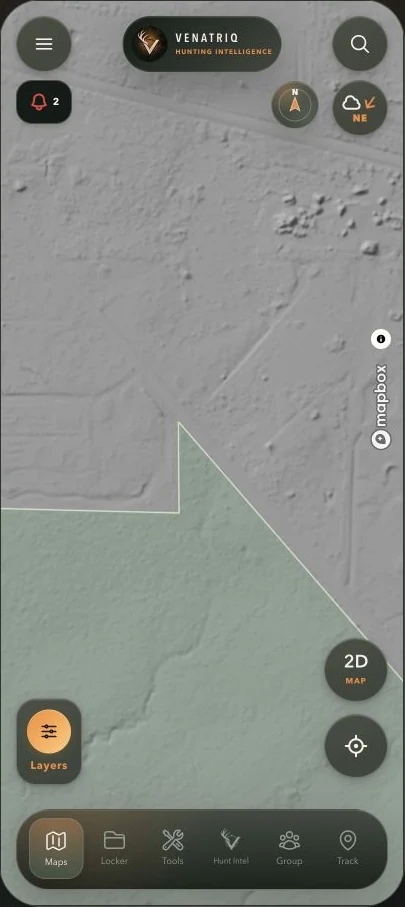
Use the terrain surface to inspect subtle relief. Source resolution and coverage determine what can be resolved. · Map attribution retained: Mapbox. - 02
Explore another perspective
Use the map mode menu to compare 2D and 3D. Apex members can open True 3D for an online photorealistic scouting view where imagery is available.
Apex only.
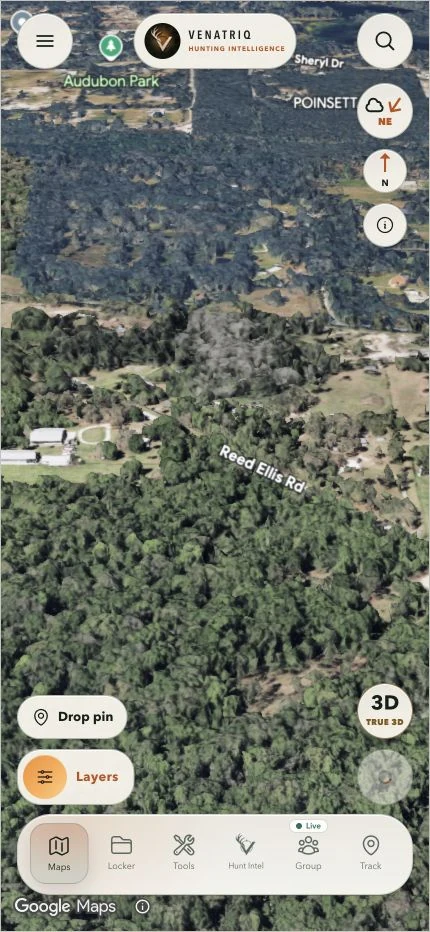
Explore the public demonstration area in True 3D. Use the familiar navigation to reach your field tools. · Google Maps imagery and attribution retained. - 03
Keep a short scouting checklist
Use Tools to drop pins for places you want to inspect. Name them clearly and check ground conditions and permission before using a route.
Feature and membership limits apply.
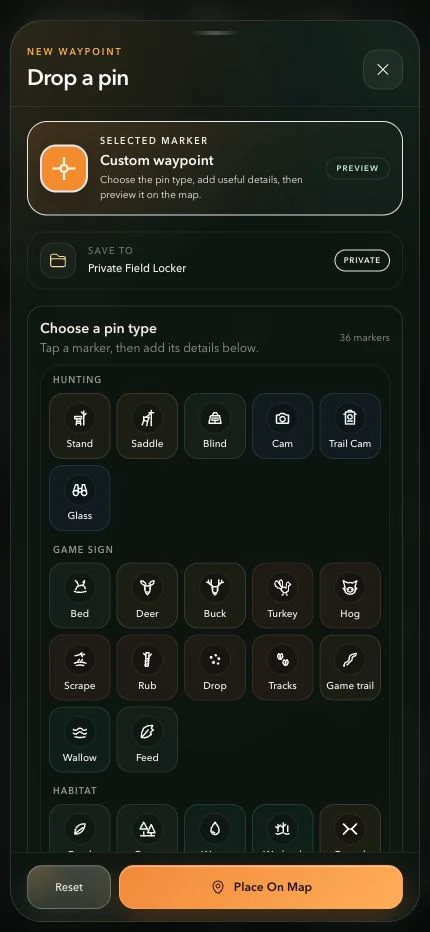
Choose a recognizable marker and check the save destination before placing your pin. More marker categories are available by scrolling.